Selectors & Extraction Guide
PageSieve allows you to define fields using CSS selectors, XPath expressions, or interactive point-and-click selection. This guide explains the selection syntax, scoping rules, and extraction targets.
Point-and-Click Selection
The browser extension embeds an interactive DOM inspector adapted from SelectorGadget.
- Click Pick next to any field in the sidebar.
- Click an element on the webpage you wish to target (highlighted in yellow/green).
- If unneeded elements are highlighted, click them to reject them (highlighted in red).
- The algorithm automatically calculates an optimal CSS selector matching your desired elements.
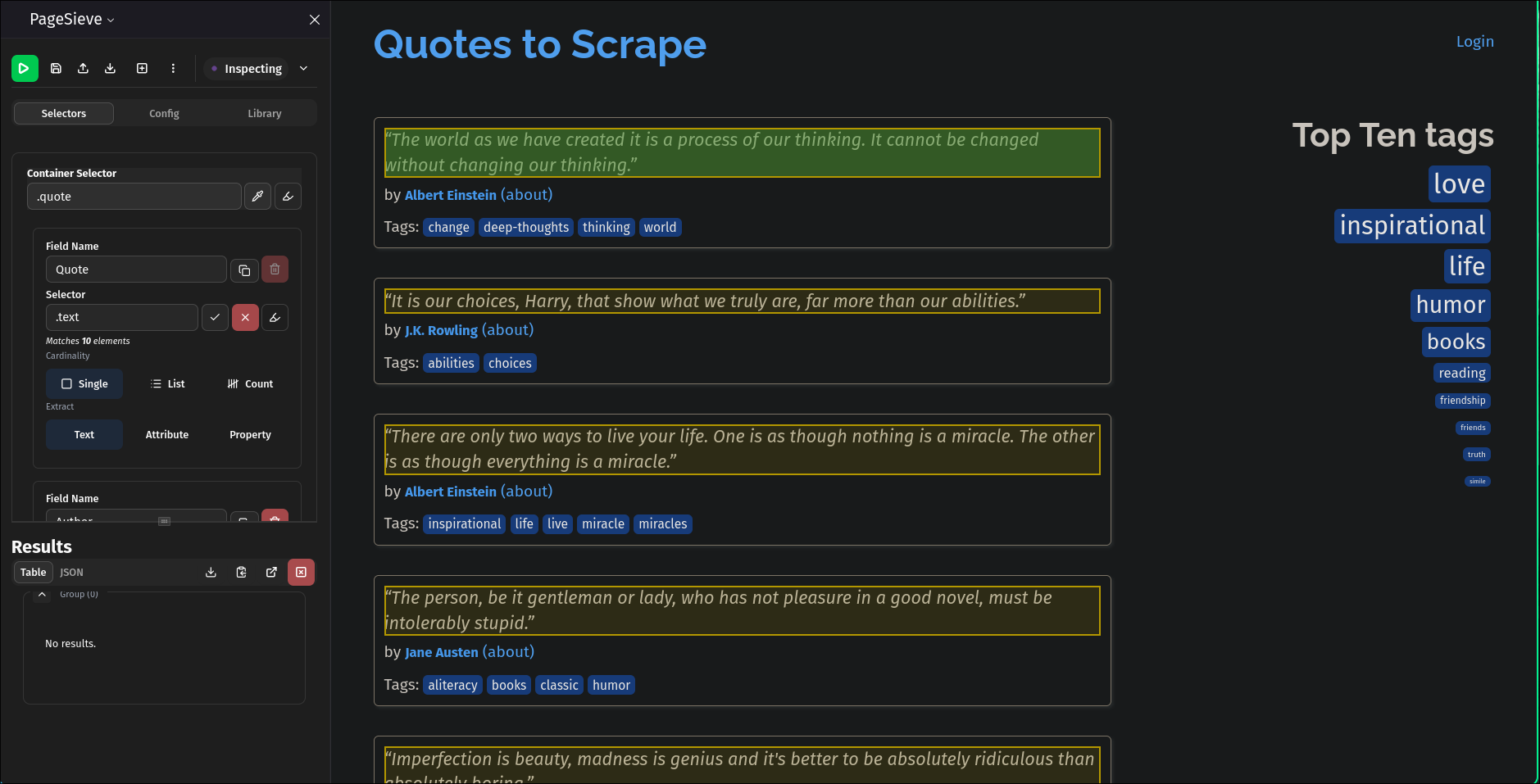
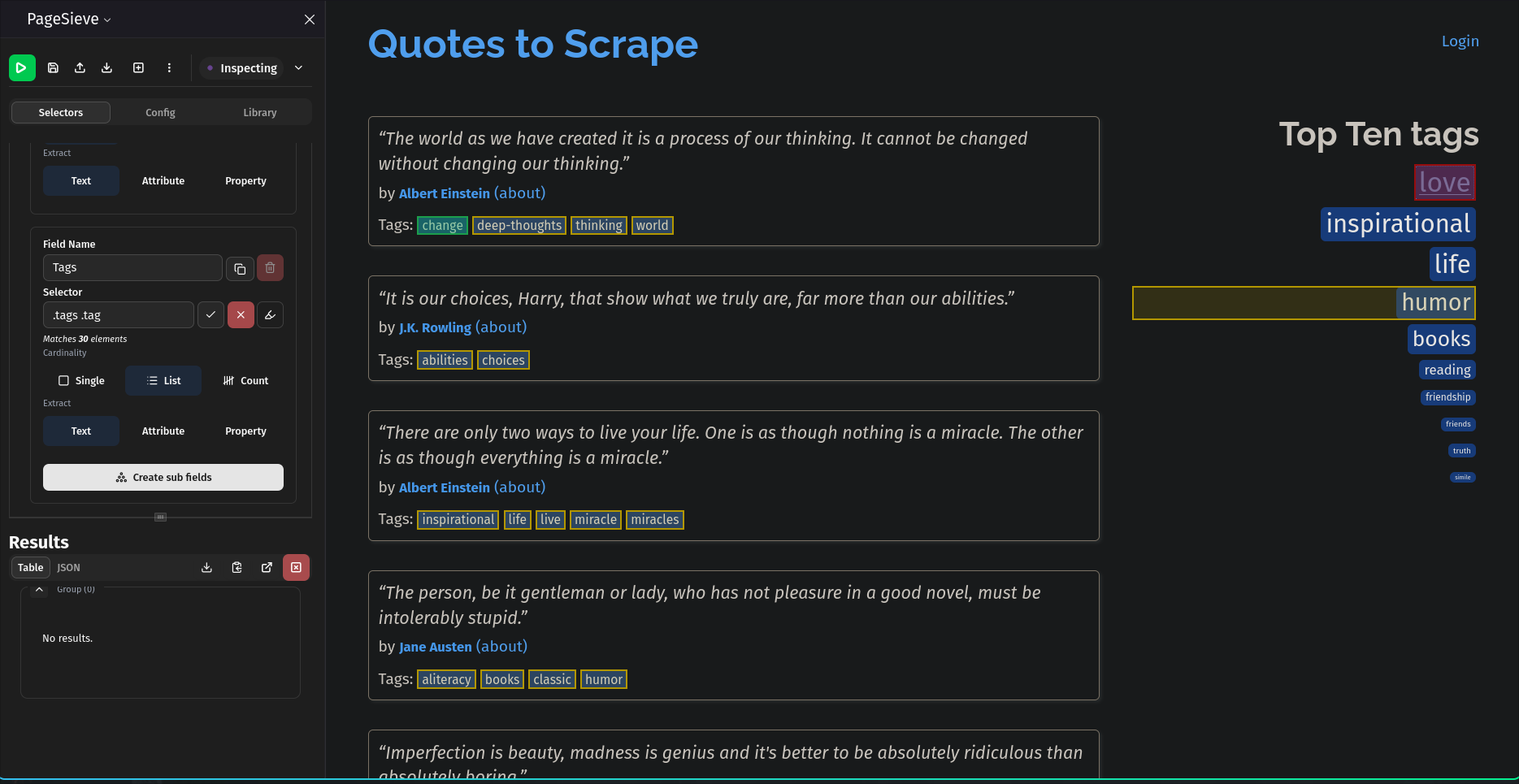
Scoping with Containers
When extracting repeated items (e.g. products, rows, cards), use the container field on a SelectorGroup (Container Selector input field in Extension Sidebar UI):
{
  "name": "Quote Items",
  "container": ".quote",
  "fields": [
    {
      "name": "Quote Text",
      "selector": ".text",
      "type": "single",
      "extract": "text"
    }
  ]
}- With
container: Each field’sselectoris evaluated relative to each container element. - Without
container: Selectors are evaluated against the entire document once (page-level extraction).
To extract singular individual fields from a page always include a container even one like body since by extractor assumes you’re working with multiple instances of each field on a page. This lets you extract data similar to the Obsidian Clipper.
Special Selector Syntax
The Dot (.) Selector
When targeting an attribute or property directly on the container element itself, use . as the field selector:
{
  "id": "f_Z9Wpuf",
  "name": "URL",
  "selector": ".",
  "type": "single",
  "extract": "attribute",
  "attribute": "href",
  "required": false
}
This extracts the href attribute from the container element itself without querying for child nodes.
See the Scraping Members of National Assembly from Mzalendo Example for a demonstration.
Relative XPath
When extracting elements that require navigating up the DOM tree or selecting preceding/following sibling nodes relative to a container, you can provide an XPath expression:
{
  "id": "f_qn54EZ",
  "name": "Company Name",
  "selector": "../../../../preceding-sibling::tr[1]/td[2]/a/text()",
  "type": "single",
  "extract": "text",
  "required": false
}
See the Fortune 500 Companies Example for a practical demonstration. This pattern is useful when you want to associate each container element with a single value.
Extraction Targets
The extract option determines what data is collected from the matched element:
extract Value |
Additional Requirement | Description |
|---|---|---|
"text" |
None | Extracts trimmed text content (textContent). |
"attribute" |
attribute: "<name>" |
Extracts an HTML attribute (e.g., href, src, title, data-*). |
"property" |
property: "<name>" |
Extracts DOM property: innerHTML, outerHTML, innerText, or textContent. |
Multi-Value & Nested Fields
type: "single": Returns a single scalar value from the first matching element.type: "multiple": Returns an array of values for all matching elements within the container.type: "count": Returns the numeric count of matching elements.- Recursive Sub-Fields: When
typeis set to"multiple", you can specify nestedfields: [...]to produce structured array-of-objects data within a row.